|
In This Issue
- Attend one of the Hub’s Upcoming Events & Workshops
- Explore some quick UDL Tips
- Try out the Icon Generator to help organize your Moodle shells
- Visit our Microsoft Teams help guides
- Can you accurately guess AI generated images?
|
|
|
Upcoming Events & Workshops
Drop-In Support
📅 January 6th | 10:00 am – 11:30 am
Get help with Teams, Moodle, eGrades, classroom technology, or ask us any other questions you have. Drop-in any time. |
|
Introduction to Accessibility Foundations
📅 January 8th | 10:00 am – 11:00 am
Learn how to make your digital content inclusive for all learners. |
|
Drop-In Support
📅 January 8th | 2:00 pm – 3:30 pm
Get help with Teams, Moodle, eGrades, classroom technology, or ask us any other questions you have. Drop-in any time. |
|
Assessment Design in the Age of AI
📅 January 30th | 9:30 am – 11:00 am
A hands-on workshop exploring effective assessment strategies with AI. |
|
|
|

Universal Design for Learning (UDL) Tips
By: Kim Krezonosky, Instructional Designer
Students learn information differently depending on their learning style. Some students prefer visuals, while others prefer clear text, audio, or a mix. Offering content in your course in Multiple Means of Representation removes barriers to learning and meets the needs of various learning styles.
Try this in Moodle:
📝
Add text summaries below videos to support diverse processing needs.
🧩
Use Moodle Pages or Accordions (Labels + HTML) to break complex ideas into smaller, structured chunks.
📄
Provide downloadable versions of readings for students who prefer offline annotation.
For more information on Multiple Means of Representation visit:
UDL Guidelines – Representation |
|
|
|
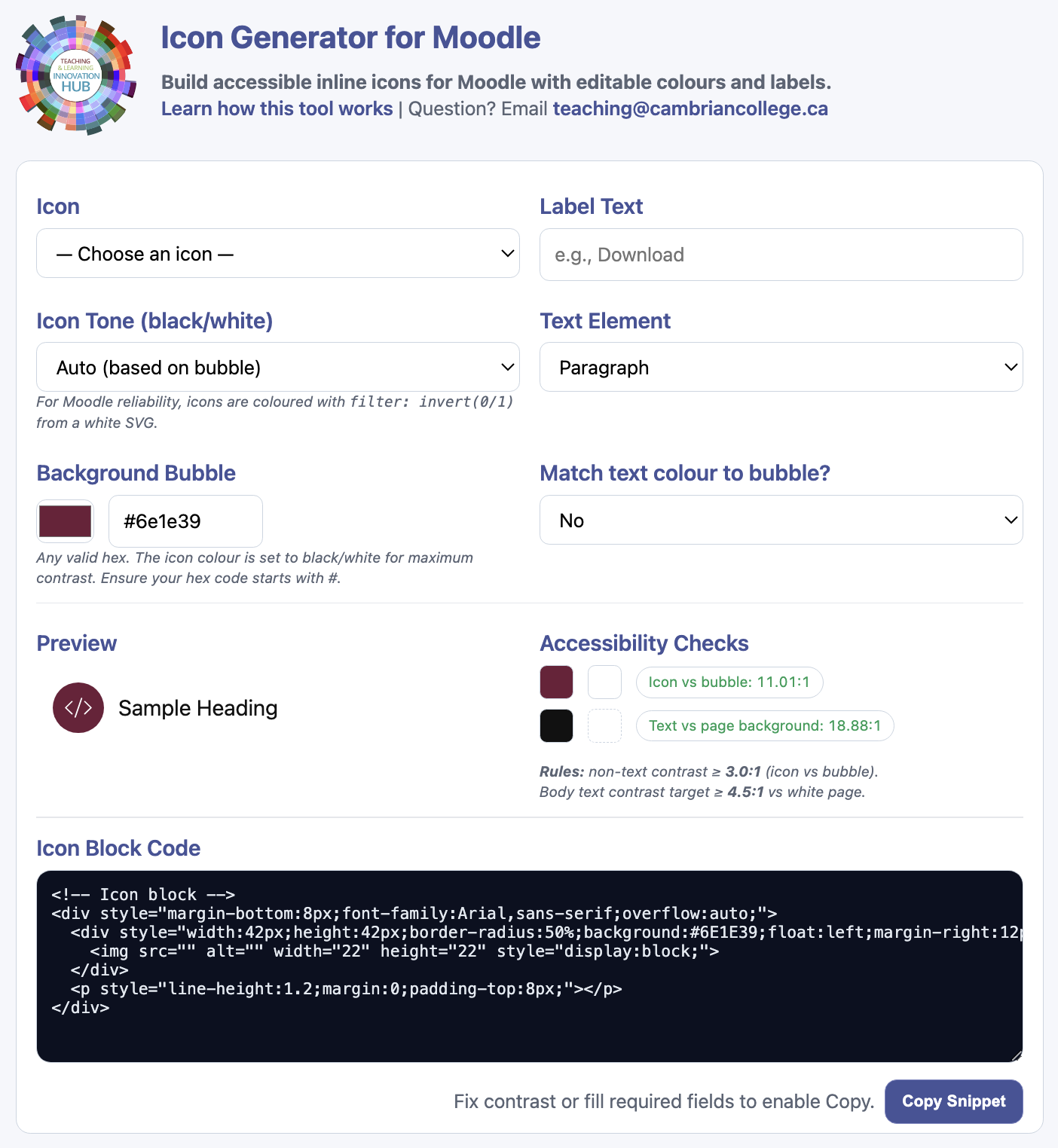
Icon Generator
The Icon Generator helps you add clear, accessible visual cues to your Moodle course—without extra design work.
🎨
Choose a Moodle-style icon, customize the colour and label, and generate ready-to-use HTML
♿
Built with accessibility in mind, including contrast and screen-reader friendly structure
🧭
Great for making modules and pages easier to scan and navigate
🔗 Try the Icon Generator |
|
|
|
|
|
|
|

AI Tools to Share with Students
Quick, interactive tools students can use to practice spotting patterns, describing what they observe, and thinking critically about AI.
🧠
Odd One Out (Google Arts & Culture)
A fast visual game that challenges students to spot patterns and explain their reasoning.
👀
Say What You See (Google Arts & Culture)
A quick activity that builds observation skills by turning visuals into clear, descriptive language.
🕵️
AI or Not? (Sightengine)
A simple checker students can use to discuss how hard it can be to tell AI-made images from real ones. |
|
|
|
|
|
 |