
Step 1: Log into myCambrian.

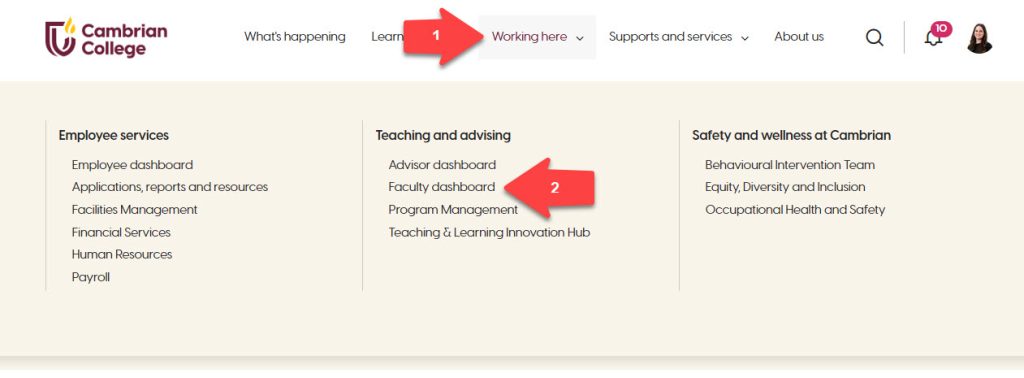
Step 2: Click on the Working here at the top of the page and select Faculty dashboard.
Step 3: Click the Cancel my classes button.
- In the Reason for Cancelling textbox, add the reason you are cancelling class. This reason is shared with you administer.
- Click the Cancel Class checkbox next to the class you wish to cancel. In the Message/Comment textbox, add the message you’d like to share with your students about this class cancellation. For example, you might put Please see Moodle for asynchronous class materials. Or, you might put Work on Assignment #3. Or, Please check your email for instructions about today’s class work.
- Click the Select All Classes checkbox if you need to cancel every class on that day. It will automatically checkoff each class in the list.
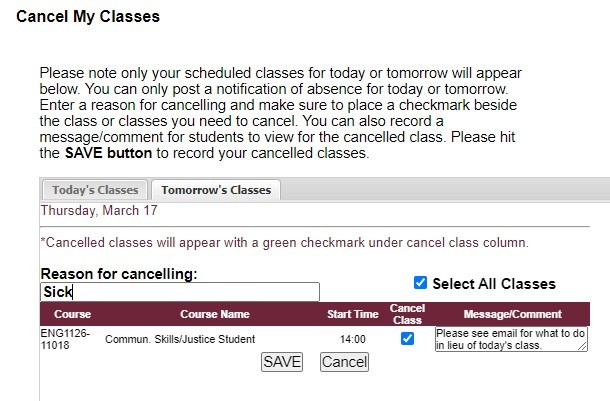
Step 4: Click SAVE to ensure you class cancellations are saved and appropriate communications are sent out.
Please note: You can only cancel classes the occur today or tomorrow.