
Take a 360° Interactive Tour of Our Learning Spaces
Cambrian classrooms are equipped with a range of instructional technology to support in-person, flex, and remote teaching. To help you become familiar with the equipment before your first class, we’ve created an interactive 360° Virtual Tour.
This tour allows you to click on different areas of the classroom to learn what each piece of equipment does and how it supports teaching and learning.
Note: Classroom configurations may vary.
What You’ll Find in a Standard Classroom
Instructor Station
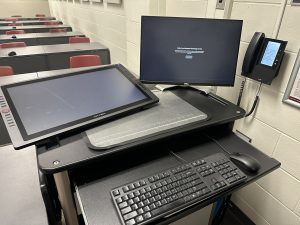
The central control point for classroom technology, typically includes:
- Desktop computer
- Two monitors or one monitor and an XP-Pen
- Keyboard and mouse
Tips for Use:
- The desktop computer is located in the cabinet; power on the system if it is not already on.
- If nothing appears on the monitors or XP-Pen, power on the projector.
- Sign in using your college email and password.
- The XP-Pen or right monitor displays on the projector screen; the left monitor duplicates on the camera.
- Drag and drop programs and windows to the correct display to share them.
Instructor Station Cabinet
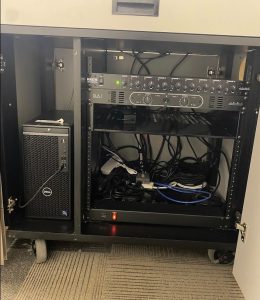
The instructor station cabinet contains all of the contains all of the core equipment that powers the classroom computer and audio system.
-
Desktop tower
-
Mixer
-
Amplifier
Tips for Use:
-
Ensure all equipment (tower, mixer, amplifier) is powered on before starting a session.
-
If you cannot hear online students, ensure the mixer is powered on.
-
If there is no sound in the classroom, check the sound settings on the instructor station and confirm the amplifier is powered on.
Projection System
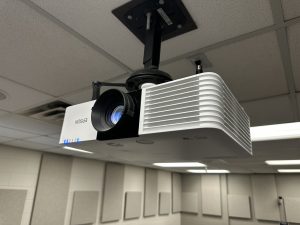
Used to display content to students in the classroom:
- Projector and screen
- Wall switch to raise/lower the screen
- Projector remote
Tips for Use:
- Press the power button once to turn on, twice to turn off.
- Projector may take a few minutes to warm up or shut down.
- Use source search on the projector remote if the instructor station is not detected.
Microphone System
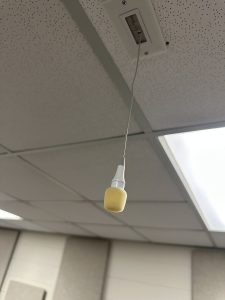
Captures classroom audio for remote sessions:
- Microphones are dispersed throughout the classroom.
- Audio is sent to the computer via the mixer in the instructor station cabinet.
Tips for Use:
- Ensure the mixer is powered on.
- Check that the master volume and individual microphone knobs are turned up.
- Remote students may struggle to hear if there is ambient noise, stay near front-of-class microphones when lecturing and ask students to avoid chatting while the instructor lectures.
Speaker System
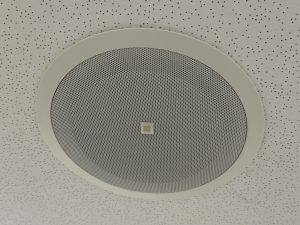
Projects audio from Teams meetings or videos (such as YouTube) into the classroom:
- Audio is managed via the instructor station.
- Amplifier sends sound from the computer to the classroom speakers.
Tips for Use:
- Ensure the amplifier is powered on.
- Turn both left and right volume knobs up.
- If you are teaching flex be sure to click Include sound when sharing video or audio content.
Camera
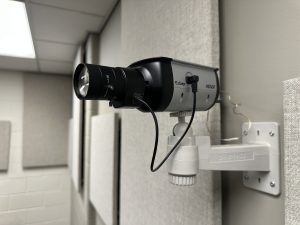
Captures the instructor and front of class:
- The camera cannot accurately capture projector screen images. Always share your screen in Teams when teaching flex classes so remote students can view slides or other content.
TV
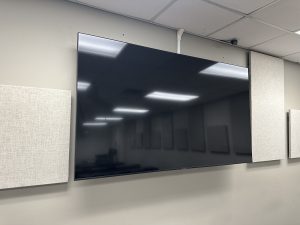
Displays the secondary monitor from the instructor station:
- Commonly used for viewing remote participants or Presenter View in PowerPoint.
Phone
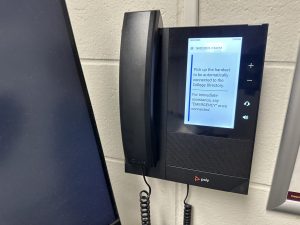
Wall phones are used for calling internally within the campus. Simply pick up the receiver to hear instructions.
Tips for Use:
-
Say the name of the person you would like to reach.
-
For immediate assistance, say “Emergency”.
-
To dial by extension, press 9.