

With the update to Moodle 5.1, the Question Bank has been redesigned to make it easier to manage questions across your course.
Good news
Your questions are still there. Nothing has been deleted or needs to be rebuilt.
What’s Changed?
- The Question Banks are now course level
- The Question Banks are accessed through the Course administration menu
- The Question Banks have a new layout with improved filtering and navigation
Accessing the Question Bank
To access your Question Bank:
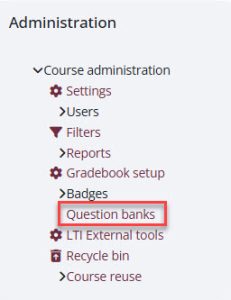
1) Click Question banks under the Course administration menu on the right side of your course
2) Select Question banks in this course
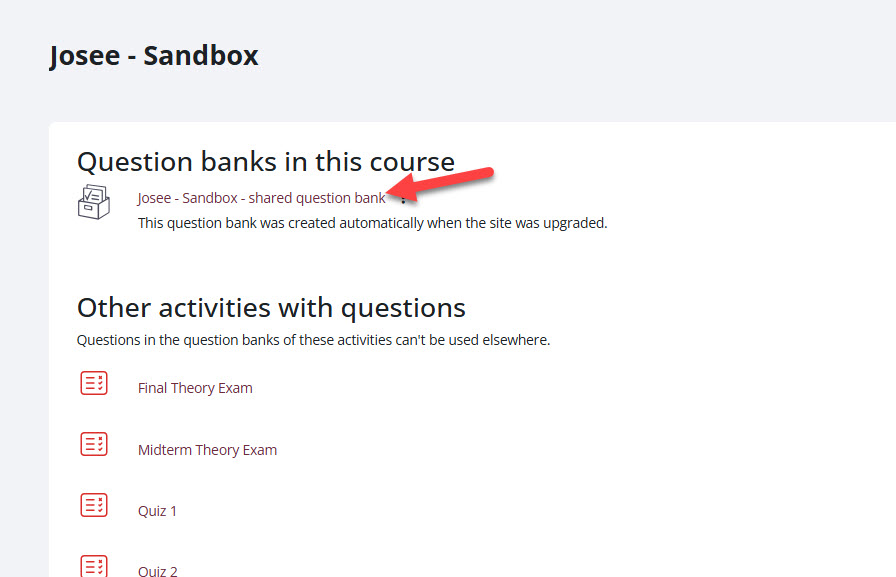
3) From there, the Question Bank functions very similarly as it did in previous versions of Moodle
If you do not see the Course administration menu, click the burgundy arrow at the top right corner of your course to expand it. 
Editing Questions
Option 1: From the course
- Go to your course
- Click Question banks → link to Question banks in this course
- Locate your question using filters or categories
- Click Edit
- Make your changes and save
Option 2: From within a quiz
- Navigate to your quiz
- Click Questions in the right-hand quiz administration menu
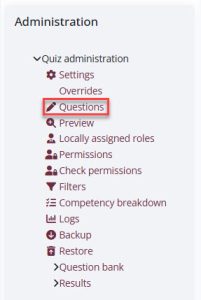
- Click See questions to open the Question Bank (if using questions from the question bank), or click the question title.
- Make your changes and save
Adding Questions to a Quiz
This process has not changed.
To add questions:
- Open your quiz
- Click Edit quiz
- Click Add
- Choose either:
- A new question to create a question at the quiz level (not recommended)
- From question bank to use existing questions
- A random question to a certain amount of questions at random from a question bank
We don’t recommend adding the question at the quiz level, as it won’t be associated to your course level question bank and you won’t be able to reuse it in other quizzes.
Organizing Questions
Since all questions now live at the course level, organization is more important than before.
Tips:
- Use categories like folders, such as Week 1, Midterm, or Final
- Avoid storing everything in the Default category
- Use clear and consistent naming for questions
- Avoid creating questions at the quiz level
Working with Categories
Category functionality remains the same, but how you access it has changed.
- You can switch between categories using the dropdown menu in the course level question banks
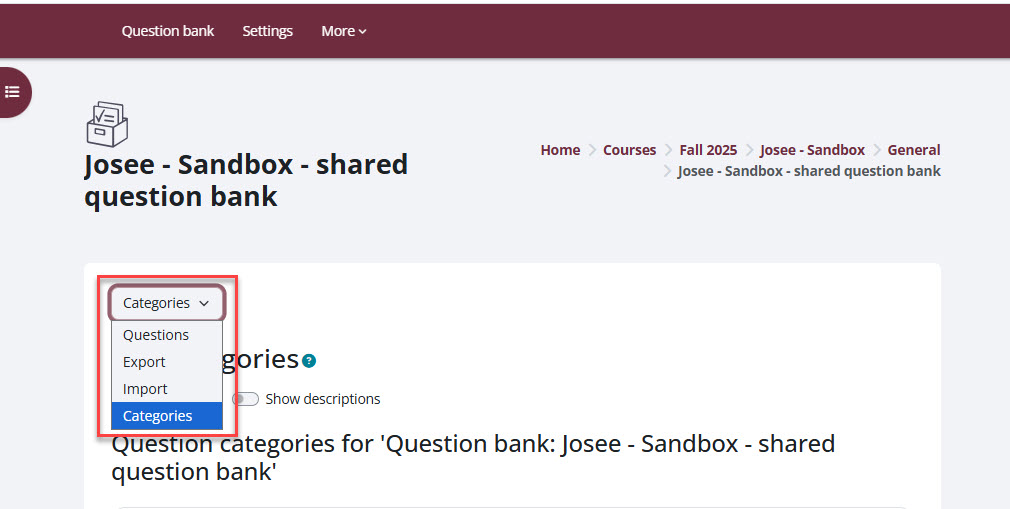
Both the course-level and quiz-level views of the Question Bank use categories. If you cannot find a question, make sure you are viewing the correct category and location.
Finding Questions (New Filters)
The Question Bank now includes improved filtering tools to help you quickly locate questions.
- Go to your course
- Open Question banks → link to Question banks in this course
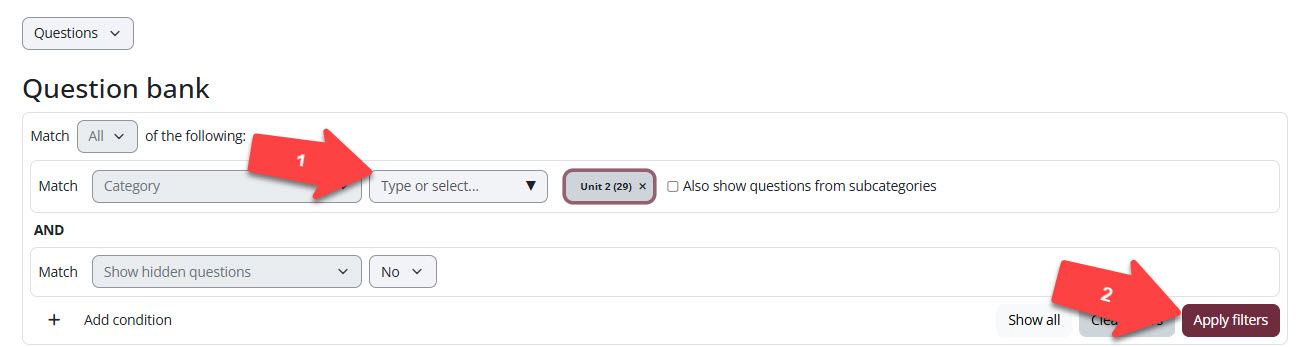
- At the top of the page, locate the filter options
- Select a category from the dropdown menu to narrow your results
- Click + Add Condition
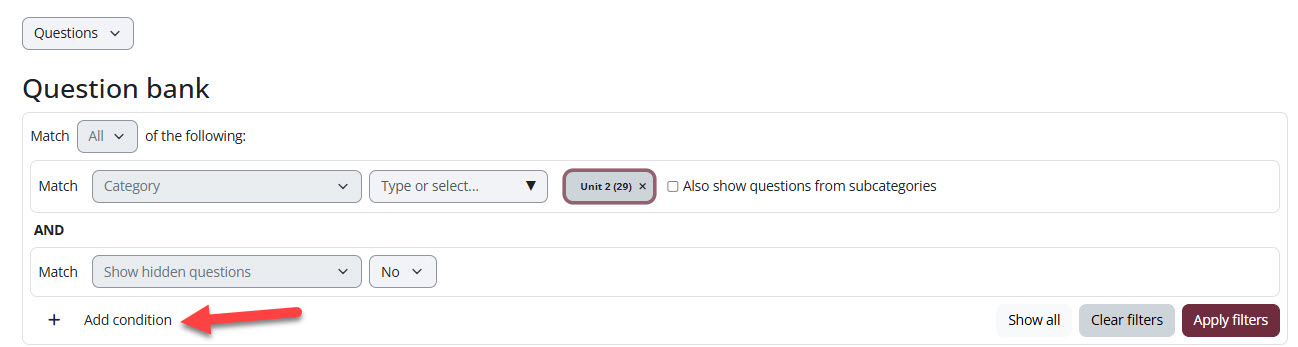
- Click Select to choose a filter parameter (you can now search by name)
- Enter the criteria for the filter you selected
- Press Apply filter to update the list
Common Questions
I clicked on the Question Bank and don’t see any questions. Did they disappear?
No, your questions are still in your course Question Bank.
If you see an empty Question Bank, you are likely viewing it from within a quiz. Return to your course homepage and access Question banks from the Course administration menu, not the Quiz administration menu.
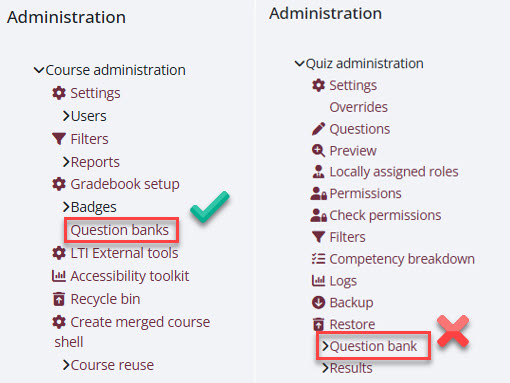
I clicked “Add from question bank” and it looks empty. Where are my questions?
This is new and expected in Moodle 5.1.
By default, the quiz may display a different question bank or category that does not contain your questions.
To locate your questions:
- Click Add → From question bank
- At the top of the Question Bank window, click Switch bank
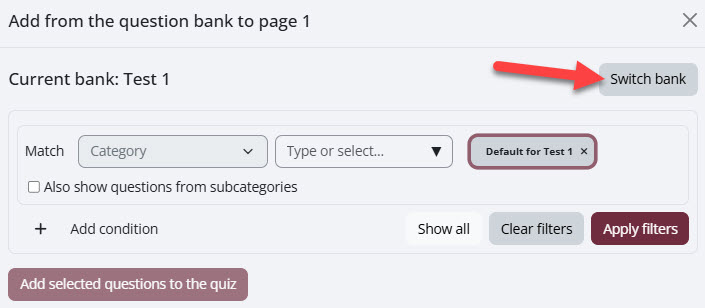
- Select Question bank in this course
- Choose the appropriate category
- click the checkbox next to the questions you want to add and click Add selected questions to the quiz.
Your questions should now appear.
Need Help?
If you would like advise on how to organize your Question Bank or help updating your quizzes, feel free to reach out to the Hub.
Email us at teaching@cambriancollege.ca
Visit our Knowledge Base for step-by-step guides