
This blog post will help faculty navigate the new myCambrian Faculty Dashboard, including recent updates where course links now direct users to application home pages rather than specific CRN pages.
Quick Links
-
-
Faculty Dashboard
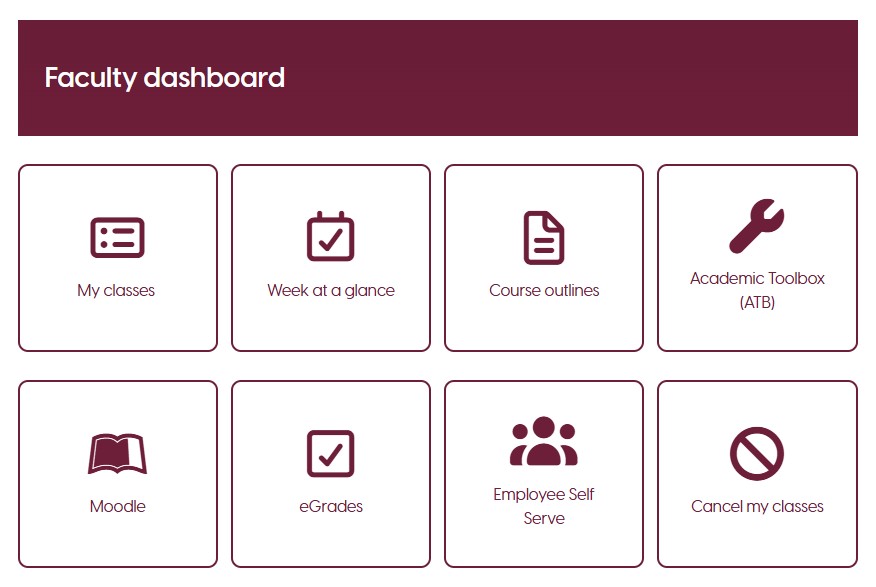
The new faculty dashboard all of the information same information as the old faculty dashboard. However, some links direct you to a different place than in previous terms and some of the buttons have different names.
My classes
The links for the Class List and Email Class are included now direct you to the My classes page, which displays your courses. First, click the Subject title to display your class list.
Note, clicking Course Title or CRN will open a different menu. You must click on the subject name to open the class list.

Email Class
To email your class, click the subject and then check the boxes next to the student(s) to email. You can then click the Email icon (✉️) at the top-right of this section. The email addresses for your selected students will be populated in your computer’s default mail application.

Note: The Banner class list does not display email addresses. To view student email addresses, navigate to your course’s Moodle page and click Participants from the top menu.

- Classes assigned as VIRT (virtual) or ONLIN (online) with a scheduled meeting time will appear on the schedule with that delivery type. This allows faculty to see at a glance which classes have a virtual component.
- Classes delivered as Flex, Hybrid, or other blended formats will not display the delivery type—only the room number appears. This can create confusion for faculty who are unsure whether they need to prepare for a virtual session while teaching in person.
- Asynchronous virtual classes (those with no set meeting time) will not appear in the calendar at all. Faculty need to check the course details in My Classes to see these courses and plan accordingly.
- Classes assigned as VIRT (virtual) or ONLIN (online) with a scheduled meeting time will appear on the schedule with that delivery type. This allows faculty to see at a glance which classes have a virtual component.
- Classes delivered as Flex, Hybrid, or other blended formats will not display the delivery type—only the room number appears. This can create confusion for faculty who are unsure whether they need to prepare for a virtual session while teaching in person.
- Asynchronous virtual classes (those with no set meeting time) will not appear in the calendar at all. Faculty need to check the course details in My Classes to see these courses and plan accordingly.
-
Week at a glance
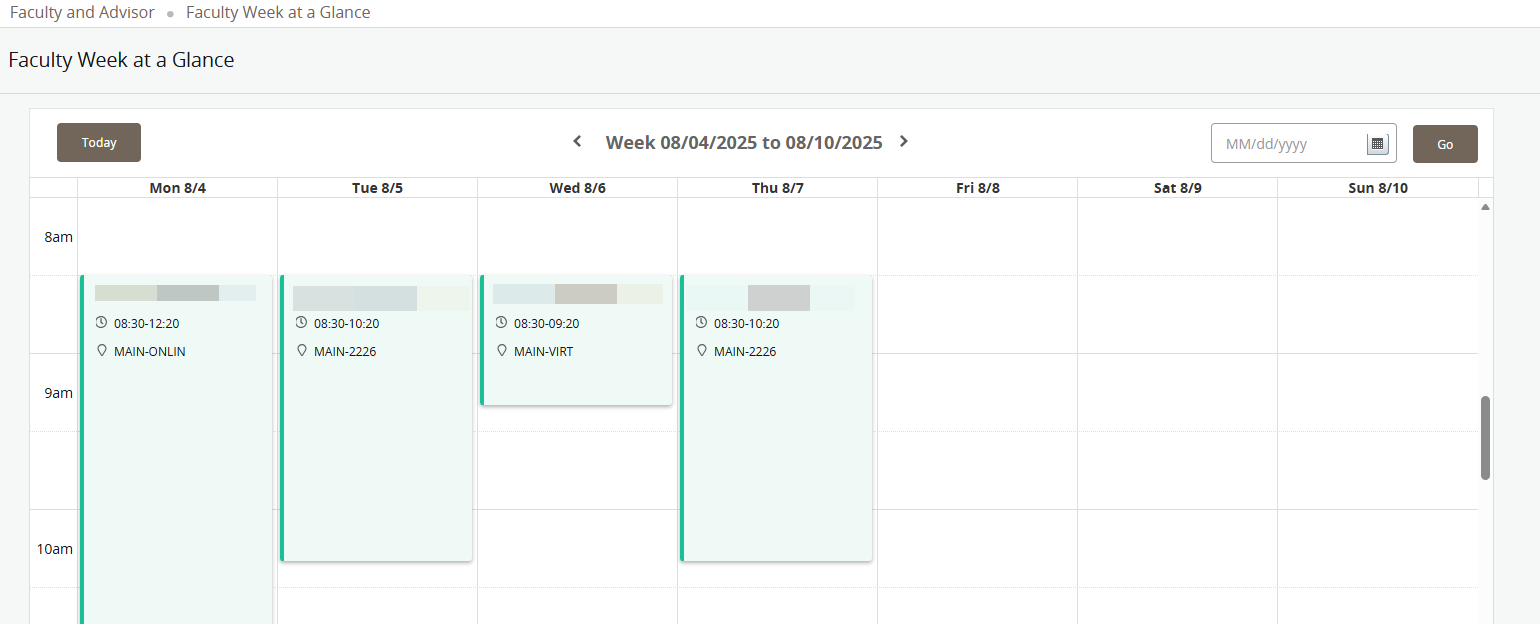
The Week at a glance icon brings you to the calendar view for that CRN.
-
- Classes assigned as VIRT (virtual) or ONLIN (online) with a scheduled meeting time will appear on the schedule with that delivery type.
- Classes delivered as Flex, Hybrid, or other blended formats will not display the delivery type, only the room number appears.
- Asynchronous virtual classes (those with no set meeting time) will not appear in the calendar at all. Faculty need to check the course details in My Classes to see these courses and plan accordingly.
Course outlines
To find a course outline, click the link from myCambrian, search for your course using the dropdown menus, and then click the Show Courses button. The Course Prefix is the first three letters of your course code, and the current term is 202526.

After entering the course information and clicking Show Courses, you will see the published course outlines that match your criteria. Click any link to open that course outline.

Academic Toolbox (ATB)
The Academic Toolbox (ATB) link will bring you to the new landing page for the CRN Syllabus tool.

Click the Access Syllabus button next to a course to open the CRN Syllabus tool.
Note: Alternatively, you may choose to download a syllabus template from the Hub website, instead of building one in the syllabus tool. If you create your syllabus using the Word document template, you can simply upload the saved document to your course Moodle shell.
Moodle
Clicking the Moodle icon now brings you to the Moodle Home page. The Home page lists all courses that you are enrolled in as a teacher, non-editing teacher, or student. You can search for your courses by pressing CTRL+F or by using the search box at the top of the page.

Click My Courses for another view of your Moodle courses. You can customize this list by starring or hiding (removing from view) the courses on this page. Click here for instructions on searching for and starring Moodle courses.
Tips:
- When searching include a hyphen in your course codes, between the letters and numbers. E.g., ENG–1002 or MTH–1010
- Moodle displays the term in the course card titles above the course code. This can help locate your current courses, or search for the term (e.g., 202509). Example:

- If a course is hidden in the settings, it will appear greyed out at the bottom of the list on your Home page.

eGrades
Clicking the eGrades icon opens the main eGrades Production Site. Use the navigation bar at the top to navigate.
When you click any link in the top navigation bar, you will be prompted to select your course from the dropdown menu. From there, you can proceed with the regular functions in eGrades.

Employee Self Serve
The Employee Self Serve portal is where you can securely access your pay-related information, including paystubs and T4 tax forms.
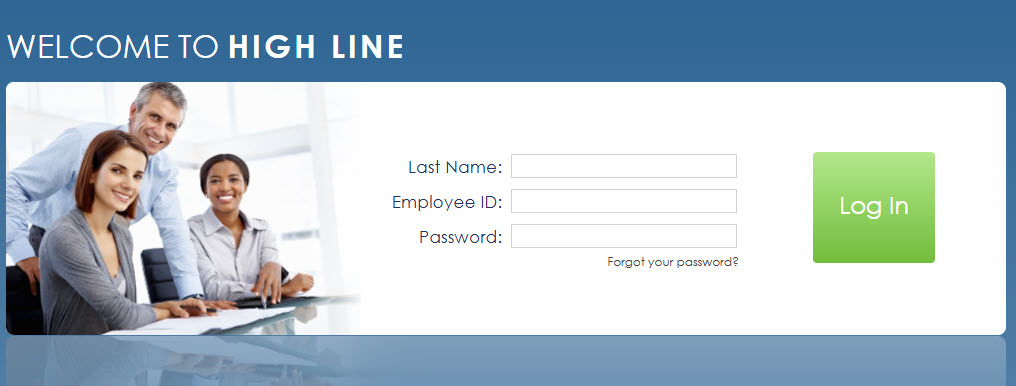
To sign in, you will need your last name, employee ID, and password. Once logged in, you can view, download, and print your documents at any time.
Click here to access instructions on how to use the portal.
Cancel My Classes
The Cancel My Classes button allows faculty to submit a class cancellation. Once submitted, the cancellation is communicated to your administrator and students.